ClickFunnels Favicon and Branding: Change, Add, or Remove It
One branding reference for favicon, badge, logo, and browser-tab questions that would be too thin as separate pages.
See the parent ClickFunnels implementation guide for the broader setup sequence.
How do you change the favicon in ClickFunnels?
Use the setting that matches the object you are branding. In current ClickFunnels, a funnel favicon can be set from Funnel Settings by selecting a favicon image. Site & Blog has a separate Site Favicon setting, and individual site/landing pages can also expose a favicon override. ClickFunnels recommends small square icons such as 16×16 or 32×32 pixels.
If you are changing the favicon for a funnel, open Funnel Settings from the Funnels dashboard settings icon. ClickFunnels notes that the favicon option is not shown when settings are opened from the Funnel Workflow Editor.
Site favicon vs funnel favicon vs page override
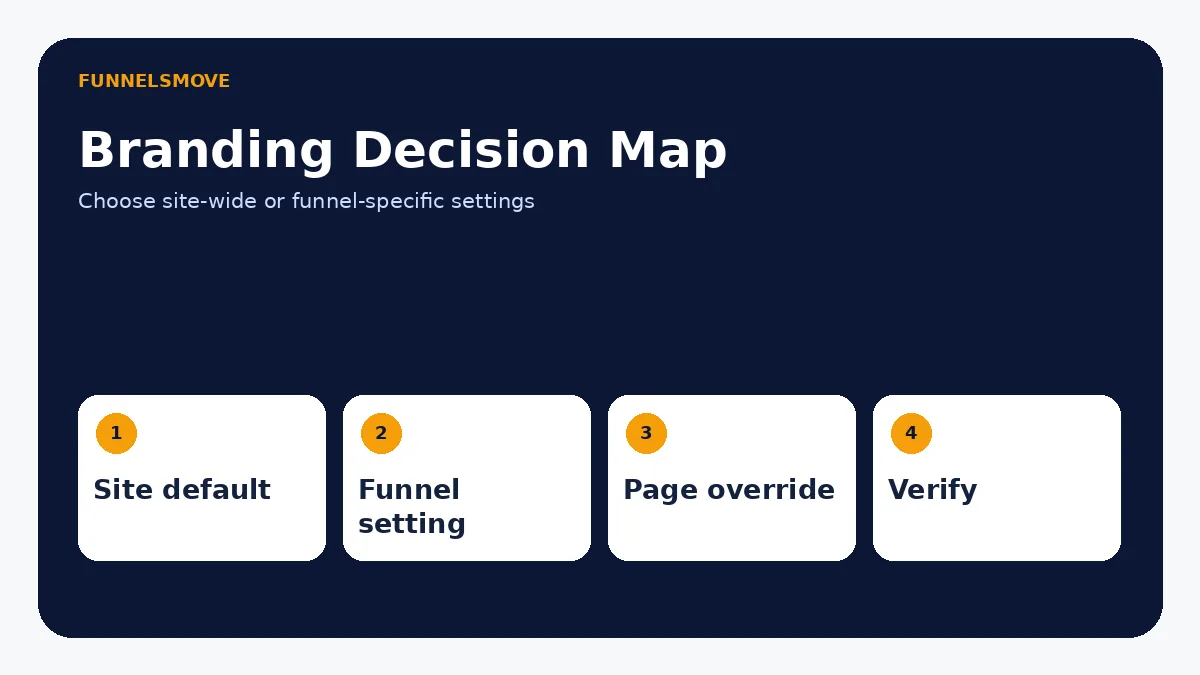
Use the Site Favicon when you want a consistent default across Site & Blog pages. Use Funnel Settings when a funnel needs its own identity. A page-level favicon can override the site default where that page-setting option is available.
This hierarchy matters when a change appears to “not work.” A page override can continue showing an older icon even after the site default changes. Check the most specific setting first.
Choose a favicon file that works
Use a simple square brand mark that remains recognizable at browser-tab size. ClickFunnels’ current site-settings documentation recommends 16×16 or 32×32 pixels and keeping the file lightweight. Avoid detailed wordmarks that become unreadable when reduced.
After uploading, save the setting and test the live page. Browsers can cache favicons aggressively, so use a private window or clear relevant cache before assuming the setting failed.
How to remove the “Powered by ClickFunnels” badge
Current ClickFunnels documentation provides a Hide “Powered by ClickFunnels” Badge control. For funnels, open the funnel’s settings and toggle the hide setting. For Site & Blog, open Site Settings and use the corresponding hide-badge control.
Do not confuse the platform badge with your own logo or favicon. Removing the badge does not automatically replace branding elsewhere on the page.
What about removing the ClickFunnels logo or banner?
Supporting keywords such as “remove ClickFunnels logo,” “remove banner,” and “take out made with ClickFunnels” usually refer to the Powered by ClickFunnels badge rather than a logo embedded in your own page design. Use the documented badge setting first.
If a ClickFunnels graphic was manually added as an Image element inside a template, remove or replace that element in the Page Editor. That is a content edit, not a site-level branding toggle.
Browser-tab name and page title are separate from the favicon
A favicon is the icon; the browser-tab text is the page title. Site Settings provides a Site Title/default SEO context, while individual page settings can define page-specific titles. Changing one does not change the other.
Keep title changes aligned with SEO intent. Do not rename every page to the brand name simply to make the browser tab look consistent.
How to verify branding changes
Test the published URL on desktop and mobile, not only inside the editor. Check the browser tab, bookmarks, page header logo, footer badge, and any shared-page preview that matters. For a funnel, test more than one step because shared settings and page-specific overrides can interact.
If the favicon is correct in one browser but stale in another, caching is the likely cause. If it is wrong across all browsers, return to the object-specific settings and confirm which favicon source that page inherits.
Plan or interface differences
Branding controls and eligibility can change with ClickFunnels product updates or plan structure. This guide relies on current official settings documentation checked on September 9, 2026. When your account interface differs, use the current support article linked below rather than an older Classic video.
Why the favicon may not update immediately
Favicons are heavily cached by browsers. If the new icon is saved correctly but the old image remains in one tab, open the public URL in an incognito/private window, refresh the page, and test another browser before changing the ClickFunnels setting again. A cache issue can make a correct configuration look broken.
If the wrong icon appears consistently across browsers, check the inheritance path. A page-level favicon can override the Site & Blog default, while a funnel can have its own favicon in Funnel Settings. Confirm which setting applies to the exact public URL you are testing.
Keep favicon, logo, title, and domain consistent
A favicon is only one small brand signal. Review the public domain, page title, favicon, header logo, button style, and footer identity together. A polished funnel can still feel untrustworthy when the browser tab shows one brand, the page logo shows another, and the checkout uses an unrelated domain.
For a multi-platform stack, use the same recognizable brand mark across WordPress, ClickFunnels, email, and checkout where appropriate, while respecting each platform’s image requirements. The custom-domain guide can help align the branded hostname with the page identity.
Should you hide the Powered by ClickFunnels badge?
Removing the platform badge can make the page feel more brand-controlled, but it is not an SEO requirement and it should not be confused with hiding your affiliate relationship. Your own affiliate disclosures must remain clear wherever you promote ClickFunnels, regardless of whether the platform badge is visible on a funnel.
Before changing the setting, confirm that your current account supports the control and that the change applies at the level you expect—funnel versus Site & Blog. Then verify the public page rather than relying only on the editor preview.
Branding launch checklist
Before sending traffic, check the favicon, browser-tab title, header logo, domain, footer identity, and Powered by ClickFunnels badge on the actual published URL. Repeat the check on at least one mobile browser and one desktop browser. If the funnel has several steps, inspect each step for page-level favicon or title overrides.
Also confirm that branding changes have not removed required legal or affiliate disclosures. Brand cleanup should make the experience clearer, not hide who operates the page or how recommendations are funded.
Document your brand settings
Record which favicon is the site default, which funnels have overrides, whether the Powered by ClickFunnels badge is hidden, and where the current logo assets are stored. This makes future page duplication and redesign work less likely to reintroduce old branding by accident.
Keep the favicon source file and brand assets in a documented location so future editors can update them without recreating or substituting inconsistent graphics.
For teams, include the preferred favicon, logo, and badge policy in the brand checklist used when launching or duplicating funnels.
Quick decision table
| Branding item | Where to start | Common confusion |
|---|---|---|
| Site favicon | Site & Blog → Site Settings | Page override may supersede it |
| Funnel favicon | Funnel Settings | Workflow Editor may not show the option |
| Powered by badge | Hide badge toggle | Not the same as a manually placed logo |
| Browser-tab text | Page/site title settings | Separate from favicon |
Evaluate ClickFunnels against your workflow
Check the current ClickFunnels offer and confirm the editor, branding, and tracking capabilities you need before subscribing.
Explore ClickFunnels (opens in a new tab)Primary sources
- ClickFunnels: Funnel Settings Overview (opens in a new tab)
- ClickFunnels: Site Settings (opens in a new tab)
- ClickFunnels: Show or Hide the Powered by ClickFunnels Badge (opens in a new tab)
Product and interface facts were checked against these sources on September 9, 2026. ClickFunnels interfaces can change, so current official documentation should control when a button name or menu differs.