ClickFunnels Page Editor: Video, Images, CSS, and More
One technical reference for common ClickFunnels editor tasks, so small variations do not become dozens of thin how-to pages.
See the parent ClickFunnels implementation guide for the broader setup sequence.
How do you embed a YouTube video in ClickFunnels?
Use the Video element in the current ClickFunnels Page Editor. Open the page, add or select a section and row, choose Add Element, then select Video from the Media category. In the Video element settings, use the supported video source or embed option and paste the YouTube URL or embed information required by the editor.
ClickFunnels’ current documentation also supports other hosted-video sources and custom embed code. Use the native Video element first because it keeps layout, responsive behavior, and editor controls simpler than a custom-code workaround.
The page editor hierarchy: sections, rows, and elements
ClickFunnels pages are built from containers and elements. Sections hold rows or flex layouts; rows hold columns or elements; elements provide the actual content such as headlines, images, buttons, forms, or video. Understanding this hierarchy makes tasks such as moving an image, hiding a block, or changing spacing much easier.
When editing, click the specific container you intend to change. The control panel can expose visibility, code, and delete controls, while the settings panel changes styling. If an element disappears, use the Layout view to find hidden containers instead of rebuilding it immediately.
How to add images, video, Vimeo, and embeds
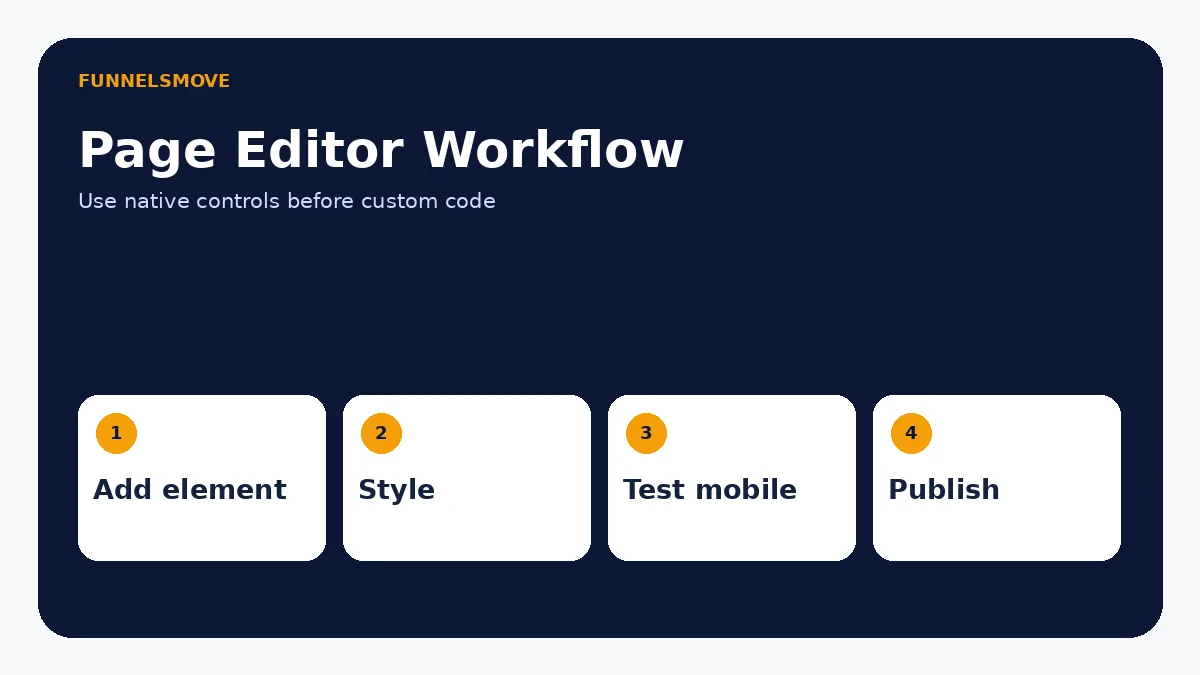
Use Image and Video elements for ordinary media. Upload optimized images with meaningful alt text, and choose the native video element for YouTube or supported hosted video whenever possible. For a Vimeo or third-party player, use the Video element if supported; otherwise use the HTML/JS element with the provider’s approved embed code.
For PDFs or downloadable resources, the better pattern is usually to host the file in an appropriate asset or document location and link a button or text element to it. Do not turn a PDF into an arbitrary custom script just because the editor exposes HTML/JS.
The branding and favicon guide covers site-level identity settings that do not belong inside the page body.
Where to add custom CSS, HTML, and JavaScript
Current ClickFunnels documentation provides two different custom-code paths. For CSS, use Settings → Show Code or a container’s code control to open the code editor and add CSS targeting a generated ID or custom attribute. For embedded HTML or JavaScript inside the page body, use the HTML/JS element.
ClickFunnels warns that custom code is an advanced feature and may not be supported by its support team when it breaks the page. Use built-in controls before writing custom CSS or JavaScript, and test changes on desktop and mobile after every code edit.
Do not paste complete <html> or <body> tags inside the HTML/JS element because that element already lives within the page document.
Undo, redo, hide, unhide, and go back
The current Page Editor includes Undo and Redo controls for reversing or reapplying editing changes. Hidden containers remain in the page structure and can be surfaced through the Layout menu. This is different from deleting an element, which removes it from the page.
For large experiments, duplicate a page or funnel before editing rather than relying on Undo as a version-control system. The existing funnel management guide explains when to duplicate an entire funnel versus reuse a page or step.
Change page titles, browser-tab names, and SEO settings
The “tab name” supporting keywords refer to the browser/page title rather than a text element on the canvas. Manage the page title and sharing/SEO settings from the page’s settings area, not by changing a visible headline. Keep the SEO title descriptive and aligned with the visible page intent.
Favicon settings are separate. A Site & Blog page can inherit the site favicon, while funnel-level settings can define a funnel favicon. See the dedicated ClickFunnels favicon guide for the current paths.
Save and reuse content without creating duplicate pages
The current editor allows reusable or global content patterns, and ClickFunnels documentation also covers duplicating pages and funnel steps. Reuse is helpful for headers, proof blocks, FAQs, or offer sections, but review every copied CTA, product, domain, tracking code, and form before publishing.
Do not create multiple live pages with nearly identical copy just because a template makes duplication easy. Give each published URL a distinct job and canonical intent.
Popups, squeeze pages, and landing-page structure
A popup is useful when it supports a specific action without blocking the main task. Keep dismissal obvious and avoid intrusive behavior on mobile. A squeeze page is simply a focused landing page whose primary job is usually capturing a lead; build it with normal page-editor elements rather than treating “squeeze page” as a different technology.
For a beginner funnel sequence, see how to use ClickFunnels. This editor page should remain a technical reference, not a second general beginner guide.
Publishing and final QA
Before publishing, preview the page on mobile and desktop, confirm hidden/visible states, test every form and button, check media playback, and verify that custom code has not broken layout or accessibility. Then publish through the current page/funnel workflow and test the public URL in a fresh browser session.
If the page includes analytics or advertising tags, use the ClickFunnels tracking guide so the same script is not accidentally installed twice.
How to add and manage images in ClickFunnels
Use the Image element for normal page graphics rather than placing an image through custom HTML. Add the element inside the section or row where it belongs, select or upload the asset, then configure size, alignment, spacing, and link behavior in the editor. Keep source images compressed before upload so a large desktop asset does not become the page’s performance bottleneck.
For accessibility, add meaningful alt text when the image communicates information. Decorative images should not repeat nearby text in their alt description. After changing an image, preview both desktop and mobile because a composition that works in a wide column may crop or shrink poorly on a narrow screen.
When an image is hidden or missing
If an element appears to vanish, check the Layout panel and device visibility controls before uploading it again. ClickFunnels’ editor can hide a container for desktop or mobile without deleting it. Also confirm that a parent row or section is not hidden, because a visible child cannot render when its parent container is suppressed.
Custom fonts and typography
Use the platform’s style and typography controls before adding custom font code. A consistent style guide reduces one-off formatting and makes global changes easier. If the specific font is not available through the normal editor or style system, custom CSS may be possible, but you should have the right to use and serve that font and should consider performance implications.
Do not upload or embed proprietary font files from an unknown source. If custom code is required, define fallbacks so text remains readable when the font fails to load. Test headings, body text, buttons, form labels, and mobile layouts rather than judging the font only on one hero headline.
How to add a PDF or downloadable resource
For a lead magnet, checklist, or downloadable document, the simplest pattern is a button or text link that points to a properly hosted file or delivery page. If the resource is gated behind an opt-in, send the visitor to the file or delivery page only after the form submits successfully, and also provide the resource through follow-up email when appropriate.
“Create a PDF for ClickFunnels” is not really an editor feature: create the document in a suitable document tool, export a web-friendly PDF, host it safely, then link to it from ClickFunnels. Avoid forcing large PDFs to load inline on mobile unless the reader genuinely needs an embedded viewer.
Adding, disabling, and troubleshooting popups
Use a popup only when it supports the page’s primary goal, such as an opt-in, confirmation, or secondary offer. Keep the close control obvious and keyboard reachable. If a popup should no longer appear, disable or remove the relevant popup behavior rather than merely hiding its visible content while leaving the trigger active.
If a popup seems to fire unexpectedly, inspect the trigger conditions and any custom JavaScript before changing the page layout. A popup driven by custom code can continue operating even if the original button or visual element has been changed.
Templates, global content, and safe reuse
Reusable sections and templates are valuable when design and messaging genuinely repeat, but a template is only a starting point. After duplicating or reusing content, review every URL, form destination, product, tracking code, privacy link, and CTA. A copied sales page that still points to the previous funnel’s checkout is a more serious error than inconsistent typography.
For shared components such as headers, testimonial layouts, guarantees, or FAQ patterns, global/reusable content can reduce maintenance. For campaign-specific claims or prices, keep ownership explicit so one update does not accidentally change unrelated funnels.
Where is the body tag, and when should you use page-level code?
Supporting keywords ask where the body tag is in ClickFunnels because some third-party tools provide installation instructions such as “paste this before the closing body tag.” In the current ClickFunnels editor, use the documented Header/Footer or custom-code locations rather than trying to edit the raw HTML document structure directly. The HTML/JS element is already rendered within the page body and should not contain another full <html> or <body> document.
When a third-party vendor specifies head versus body placement, follow the vendor’s current instructions and map them to the appropriate ClickFunnels code field. For analytics and advertising tags specifically, the tracking guide explains how to avoid loading the same script twice.
Page Editor troubleshooting checklist
When the editor behaves unexpectedly, isolate the problem before rebuilding the page. First save your work and reload the editor. Then check whether the issue affects one element, one container, one device view, or the whole page. If only one element is affected, inspect that element’s settings and custom code. If a whole section is affected, check the parent container and visibility controls. If the public page differs from the editor, publish again and test the live URL in a clean browser session.
Custom CSS and JavaScript should be the last troubleshooting layer. Temporarily disable the custom code you added and confirm whether the native page renders correctly. If it does, reintroduce the customization incrementally. This makes it much easier to identify a selector, script, or third-party embed that is causing the problem.
Video does not play
Confirm the source URL or embed code is valid and publicly accessible, then check the Video element’s provider settings. Test without browser extensions that may block media. If using a third-party embed, verify that the provider permits embedding on your domain.
Mobile layout looks wrong
Review container widths, padding, margins, visibility rules, and any fixed dimensions in custom CSS. Avoid assuming a desktop design will shrink cleanly. The mobile preview is a starting point, but the published page should also be checked on a real narrow viewport.
A safer editing workflow for live funnels
For a live revenue funnel, avoid making several structural changes directly on the production version without a rollback plan. Duplicate the page or funnel when the change is substantial, make the edit, test links and forms, compare mobile and desktop, then publish deliberately. For small copy changes, use normal editor controls and verify the published result immediately.
Keep a short change log for custom code, tracking scripts, and unusual embeds. Future editors should be able to tell why a script exists and what page behavior depends on it. This is especially important when multiple people work in the same workspace.
Pre-publish editor checklist
Before publishing, verify that every visible button goes to the intended destination, every form submits to the correct workflow, every image has appropriate alt text, every video loads without blocking the page, and every hidden element is intentionally hidden. Check both desktop and mobile views, then test the public URL rather than relying only on editor preview.
If you used custom CSS, HTML, JavaScript, or a third-party embed, document where it was added and why. That note can save significant troubleshooting time when the page is duplicated or edited later.
For production funnels, test the editor result with real destination URLs, form validation, keyboard navigation, and a fresh browser session before increasing traffic. A page that looks correct in preview can still fail at the handoff between form, checkout, tracking, or external embed.
Quick decision table
| Task | Best starting point | Escalate to custom code when |
|---|---|---|
| YouTube/Vimeo | Native Video element | Provider needs unsupported embed behavior |
| Images | Image element | Rare custom rendering is required |
| Styling | Built-in editor controls | Native controls cannot achieve the design |
| HTML/JS | HTML/JS element | The feature is not available natively |
For reusable layouts beyond individual editor components, see the ClickFunnels templates guide.
To apply the editor to a focused acquisition page, use the ClickFunnels landing page guide.
Related: website-builder fit and limitations.
Evaluate ClickFunnels against your workflow
Check the current ClickFunnels offer and confirm the editor, branding, and tracking capabilities you need before subscribing.
Explore ClickFunnels (opens in a new tab)Primary sources
- ClickFunnels: Add Video to Your Pages (opens in a new tab)
- ClickFunnels: Adding Custom CSS Code (opens in a new tab)
- ClickFunnels: Insert Custom HTML and JavaScript (opens in a new tab)
- ClickFunnels: Getting Started with the Page Editor (opens in a new tab)
Product and interface facts were checked against these sources on September 9, 2026. ClickFunnels interfaces can change, so current official documentation should control when a button name or menu differs.